Key takeaways
An MCP server lets an AI assistant call an external tool without you leaving the conversation. Enrow's answers at https://mcp.enrow.io/mcp. As of October 6, 2026, it plugs into Claude, Claude Code, Cursor, VS Code, Codex and other MCP clients.
You sign in to your Enrow account in the browser, then click Allow: no API key to copy. The assistant finds a work email (1 credit per email found), verifies an address (0.25 credit), finds a mobile number (40 credits per number found) and checks your balance for free.
Since October 5, 2026, a free account is enough: you run your searches one at a time, with the 50 free credits you get each month. Lists and the API key need a paid plan. To cut an assistant's access: Profile → Applications, in the Enrow app.In Cursor, the agent has just cleaned up your CRM export. Before you import it back, two questions remain: which addresses still work, and how do you find the three that are missing? Until now, you left the editor to look for the answer somewhere else. Now you ask the agent, in the same place.
What makes this possible is Enrow's MCP server: the link between your assistant and your Enrow account. As of October 6, 2026, it plugs into Claude (on the web, on desktop and on mobile), Claude Code, Cursor, VS Code with GitHub Copilot, Codex, OpenClaw and Hermes Agent; other MCP clients connect with the server's address.
A word before going further: this page is published by Enrow and covers our own product. Coming up: what an MCP server is, what your assistant can do with Enrow, how to connect it tool by tool, what it costs, and how to cut access.
What is an MCP server?
An MCP server is a connector that lets an AI assistant use an external tool. It describes the actions available; the assistant picks the one that answers your request, calls it, then uses the result to answer you. MCP, short for Model Context Protocol, is an open standard created in late 2024 by Anthropic, the company behind Claude.
The best picture is still the USB-C port: one plug shape for everything. On one side, the compatible assistants: Claude, ChatGPT, Cursor, VS Code and many more. On the other, the MCP servers each vendor publishes to make its product usable by an AI.
Without MCP, your assistant can only talk: you copy data in, you copy answers out. With it, the assistant acts: it calls the tool itself, gets a structured result back, and moves on to the next step. To go further, the protocol has its official site.
Client, server, tools: who does what
Three words to know:
- The MCP client is the application you work in: Claude, Claude Code, Cursor, VS Code with Copilot. It is the one that calls the servers.
- The MCP server is the connector published by a tool's vendor, here Enrow. It receives each call and passes it on to the service.
- The tools are the actions the server offers, each with a name, a description and parameters. Enrow's has 13 of them, including
find_email,verify_emailandfind_phone.
You don't have to name the tool: you write your request, and the assistant picks one from the descriptions.
Local server or remote server
A local server is a program the assistant runs on your computer. It is often set up with an API key written into a configuration file. A remote server is an HTTPS address the assistant calls over the internet, and you usually connect in the browser.
Enrow's is a remote server: https://mcp.enrow.io/mcp, over Streamable HTTP. It is listed in the official MCP Registry, a public directory of servers, as io.enrow/enrow-mcp. Its code is public, under the MIT licence, on GitHub: a developer can run it from source, with an API key, which means a paid plan. Connecting through the browser goes through the hosted address.
Why you connect in your browser
For a remote server, MCP provides an OAuth-style connection. In practice, your tool opens an Enrow page in the browser; you sign in to your Enrow account if you aren't already, then click Allow. The tool then receives access specific to that connection, which you can cut at any time from Enrow.
You copy no key, and no secret goes through a configuration file. Enrow follows the MCP authorisation specification, with dynamic client registration: a compatible tool works out everything else on its own, from the server's address.
What your assistant can do with Enrow
Enrow's server offers 13 tools. You don't need to know them to use them, but in a terminal or an editor, each call shows up under the tool's name. Here are the four basic tools.
| You ask for | Tool | Cost |
|---|---|---|
| The work email of a named person, from their full name and their company | find_email | 1 credit per email found |
| Whether an address is deliverable, catch-all domains included | verify_email | 0.25 credit per address, whatever the verdict |
| The work mobile number of a named person, from their LinkedIn profile, or their name and their company | find_phone | 40 credits per number found |
| Your credit balance | get_account_info | Free |
The first three have a list version, reserved for paid plans: find_emails_bulk and verify_emails_bulk handle up to 5,000 people or addresses per call, find_phones_bulk up to 3,000 people.
Searches are asynchronous. find_email returns an id, then the assistant calls get_email_result with that id, sometimes several times, until the search is done. Every tool that starts a search has its reading tool: six tools start a search or a verification and spend credits, seven read a result or the balance. None of them deletes anything, and the assistant can't browse your past searches: each read needs the id received at launch.
A few requests to start with:
Use Enrow to check my credit balance.

Find the work email of Jane Doe at Acme (acme.com).

Use Enrow to verify the addresses in the email column of leads.csv, then add a column with the verdict.

Find Jane Doe's work mobile number: <URL of her LinkedIn profile>
The first one is the Enrow app's test prompt: checking your balance spends no credits.
Can Claude find an email on its own?
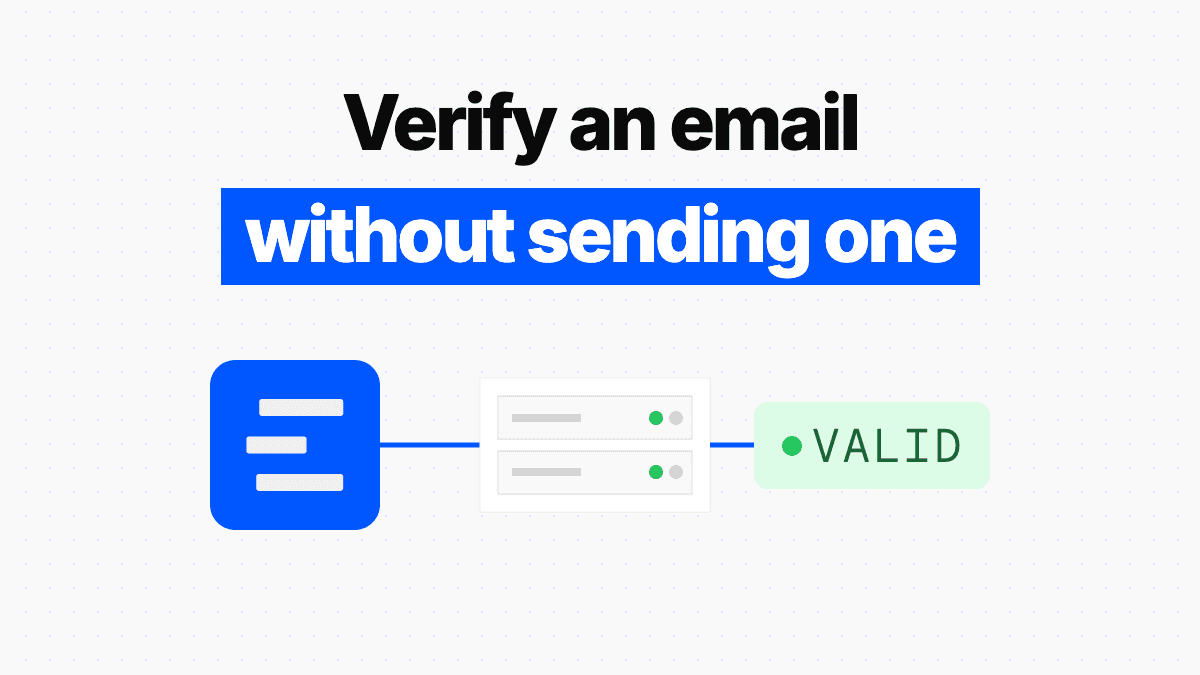
Without a tool, an assistant can search the web or guess an address format, such as firstname.lastname@company.com. It can't know whether the mailbox exists. With Enrow, it goes through the Email Finder to find the address and through the Email Verifier to know whether it is deliverable, without any email being sent.
Three uses, from chat to terminal
- In Claude, before a meeting. "Sum up what Acme does, then find the work email of Jane Doe, their head of purchasing." Claude handles the summary, Enrow the address.
- In Claude Code or Cursor, before a CRM import. The file is in your project: the agent has the address column verified, adds the verdict, then looks for the missing addresses of the people named in the file. With a paid plan, it uses the list tools. With a free account, it goes one search at a time, within your credits.
- In an agent, from one step to the next. You ask who runs purchasing at Acme; the agent searches the web and suggests a name. You confirm, and Enrow finds that person's email, or their number with the Phone Finder.
Enrow doesn't provide prospect lists: it always needs a specific person, with their name and their company, or their LinkedIn profile for a number. This data is professional contact information, meant for B2B use, and you remain responsible for how you use it: legal basis, informing the person you contact, respecting their right to object.
How to connect Enrow, tool by tool
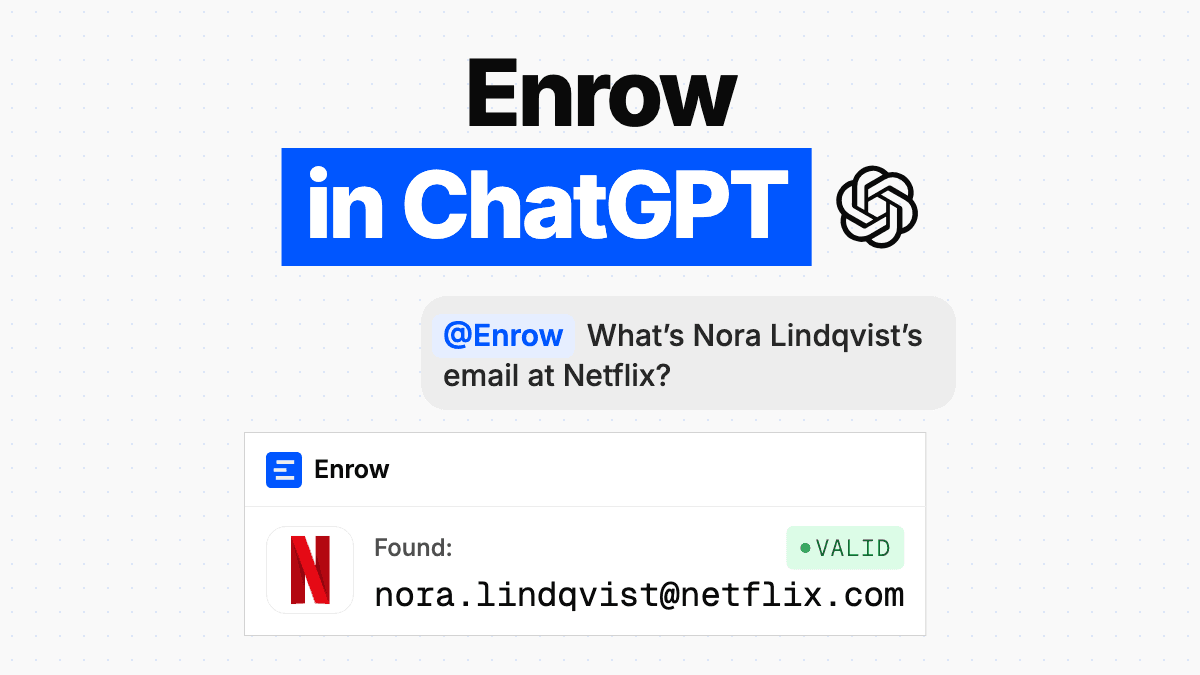
For ChatGPT, where Enrow is an official plugin, everything is in our guide How to Use Enrow in ChatGPT. The other tools all connect to the same address: https://mcp.enrow.io/mcp.
You need an Enrow account, free or paid, and an up-to-date tool. For an application installed on your computer, open Enrow's sign-in page in a browser on that same computer: that is where the application receives access.
In the Enrow app, the MCP page (Orchestration section, sign-in required) has these guides tool by tool, with one-click install buttons for Cursor and VS Code. It also follows the connection live, up to the first call received. Once connected, send the test prompt in your tool: "Use Enrow to check my credit balance."
| Tool | Add Enrow | Sign in | Good to know |
|---|---|---|---|
| Claude (web, desktop, mobile) | Custom connector, with the server's address | Connect, then Allow | Claude Free plan: one custom connector only |
| Claude Code | claude mcp add | claude mcp login enrow | Version 2.1.186 or later |
| Cursor | mcp.json file, or the MCP page's button | Connect, in Customize → MCPs | Version 3.10 or later |
| VS Code | code --add-mcp, or the MCP page's button | On first use by Copilot | Version 1.101 or later, with GitHub Copilot |
| Codex | codex mcp add | Automatic, otherwise codex mcp login enrow | Latest version |
| OpenClaw, Hermes Agent | mcp add, with the --auth oauth option | mcp login enrow | Version 2026.9 or later |
| Zed, Devin | Zed settings, or devin mcp add | Authenticate, or devin mcp login enrow | Guide in the manual setup |
| CI, servers, Gemini CLI | Header with your API key | No sign-in: the key is enough | Paid Enrow plan |
Add Enrow to Claude, on the web and in the desktop app
You add the connector from claude.ai or the desktop app, and it then works on mobile too. No need to touch the claude_desktop_config.json file: it is for local servers, while the desktop app uses the same connector as claude.ai.
- Open Customize → Connectors, click "+ Add", then "Add custom connector".
- Name the connector Enrow, paste the address
https://mcp.enrow.io/mcp, then click Continue. - Claude shows the connection settings it detected. Keep the ones it suggests, add no API key in Request headers, and finish with Add.
- Next to Enrow, click Connect. Sign in to Enrow if asked, then click Allow. Enrow then shows Connected.
- In a conversation, open the "+" button at the bottom left, then Connectors, and check that Enrow is on. Then send the test prompt.
On Claude's Team and Enterprise plans, an Owner first adds Enrow for the whole organisation, in Organization settings → Connectors. Each member then opens Customize → Connectors, clicks Connect next to Enrow and signs in with their own Enrow account. An API key placed in Request headers would, on the contrary, be shared by every member.
On Claude's Free plan, only one custom connector is possible. And as of October 6, 2026, Enrow isn't in Claude's connectors directory yet; we have no date to announce. The custom connector is therefore the way to use it today.
Steps based on Claude's help article on custom connectors, read on October 6, 2026.
Add Enrow to Claude Code
Claude Code, Anthropic's coding agent, runs in the terminal. You need version 2.1.186 or later, the first one that knows claude mcp login.
claude mcp add --transport http --scope user enrow https://mcp.enrow.io/mcp
claude mcp login enrow
The first command adds Enrow; --scope user makes it available in all your projects. The second opens your browser: sign in to Enrow, then click Allow. You can also type /mcp in Claude Code, pick enrow, then Authenticate.
To check, claude mcp list should show enrow with ✔ Connected. Then start claude and send the test prompt.
Add Enrow to Cursor
You need Cursor 3.10 or later. Add Enrow to ~/.cursor/mcp.json; if the file already exists, only add the enrow entry under mcpServers.
{
  "mcpServers": {
    "enrow": {
      "url": "https://mcp.enrow.io/mcp"
    }
  }
}
The "Add to Cursor" button on the MCP page does the same in one click: Cursor opens with Enrow ready to install, and all that's left is to click Install.
To sign in, open Customize → MCPs in Cursor, then click Connect next to enrow. With Cursor's CLI, the command is agent mcp login enrow. Either way, your browser opens: sign in to Enrow, then click Allow.
To check, enrow should be on under Customize → MCPs and list its tools. Then send the test prompt in the agent.
Add Enrow to VS Code (GitHub Copilot)
You need VS Code 1.101 or later, with GitHub Copilot. From a terminal:
code --add-mcp '{"name":"enrow","type":"http","url":"https://mcp.enrow.io/mcp"}'The "Open in VS Code" button on the MCP page does the same in one click: VS Code opens with Enrow ready to install, and all that's left is to click Install.
Then send the test prompt in Copilot Chat, in agent mode. The first time Copilot uses Enrow, VS Code asks to authenticate: click Allow. Your browser opens: sign in to Enrow, then click Allow.
To check, run MCP: List Servers from the command palette: enrow should show as running.
Add Enrow to Codex
Codex, OpenAI's coding agent, comes as a CLI, an extension for your editor and an app. Use its latest version, then add Enrow from a terminal:
codex mcp add enrow --url https://mcp.enrow.io/mcpCodex detects the sign-in and opens your browser: sign in to Enrow, then click Allow. If the browser doesn't open, or to sign in again later, run codex mcp login enrow.
To check, codex mcp list should show OAuth in the Auth column, on the enrow row. Then send the test prompt in Codex.
Other MCP clients
Four other tools have their guide in the Enrow app: OpenClaw and Hermes Agent in their tabs, Devin and Zed in the manual setup.
OpenClaw, the open-source agent that runs on your computer, from version 2026.9:
openclaw mcp add enrow --url https://mcp.enrow.io/mcp --transport streamable-http --auth oauth
openclaw mcp login enrow
Your browser opens, or the command prints the address to open. Then openclaw mcp status --verbose shows oauth authorized on the enrow row.
Hermes Agent, Nous Research's open-source agent, from version 2026.9:
hermes mcp add enrow --url https://mcp.enrow.io/mcp --auth oauth
hermes mcp login enrow
Hermes confirms the sign-in with ✓ Authenticated, and hermes mcp test enrow then lists Enrow's tools.
Devin, whose desktop app and CLI share the same configuration:
devin mcp add enrow https://mcp.enrow.io/mcp
devin mcp login enrowZed: add this block to your settings, then click Authenticate next to enrow in the Agent Panel settings.
"context_servers": {
  "enrow": {
    "url": "https://mcp.enrow.io/mcp"
  }
}
Any other client needs support for remote servers over Streamable HTTP. An application on your computer that handles MCP's OAuth sign-in connects like the others: it receives access through a redirect to 127.0.0.1, localhost or [::1], on any port. For the rest, there is the API key.
Without a browser: the API key (CI, servers, Gemini CLI)
Where signing in through the browser isn't possible, such as in a CI job, on a server or with a client without OAuth, the server accepts your Enrow API key in a header:
Authorization: Bearer <your API key>The API key needs a paid plan: a free account doesn't have one. With it, all 13 tools answer, lists included. Keep it secret, because anyone who holds it can spend your credits. The manual setup on the MCP page shows this header with your key, along with a curl command to test it. The server also reads the key from the x-enrow-api-key header.
Gemini CLI connects this way for now: it requires an iss parameter that Enrow doesn't send yet.
gemini mcp add --scope user --transport http --header "Authorization: Bearer <your API key>" enrow https://mcp.enrow.io/mcpIf the connection doesn't go through
- The page says the request has expired. A sign-in request is valid for 10 minutes. Just start a new one from your tool:
claude mcp login enrow,codex mcp login enrow, or Connect in Claude or in Cursor. - Enrow stops answering, or the tool asks you to sign in again. The access was disconnected from Profile → Applications, or it expired. Just sign in again the same way.
- You are a member of an Enrow team. Signing in from the applications on your computer is reserved for individual accounts and team owners. You can use the team's API key, if the app's API page shows it to you: it also appears in the manual setup on the MCP page.
ready to stop wasting time?
Connected in minutes.
Verified data in seconds.
What it costs, with a free or a paid account
The server itself costs nothing. Each search spends the credits of your Enrow account, at the same rate as in the app or through the API: 1 credit per email found, 0.25 credit per address verified whatever the verdict, 40 credits per mobile number found (on current plans; legacy plans keep their rate). Checking the balance is free.
Credits are debited at launch, then refunded when nothing is found. For a list, the balance must therefore cover the total up front, otherwise the search doesn't start.
A free account is enough to connect Claude, Claude Code, Cursor, VS Code, Codex and the other applications on your computer. You use the 50 free credits you get each month, one search at a time, phone numbers included. The list tools and the API key need a paid plan, from $17 a month for 1,000 credits.
Two habits with an agent. First, have it check the balance before a series: get_account_info costs nothing. Second, with a free account, don't be surprised when a list request is refused: the assistant does see all 13 tools, but the list ones answer that a paid plan is needed and suggest single searches instead. It can then chain those, within your credits.
What the assistant receives, and how to cut access
The server hosted at mcp.enrow.io is stateless: it keeps no session and none of the content of your requests, apart from technical and security logs. Your searches, on the other hand, are recorded in your Enrow account, like any API call. What remains is what the tool you connect receives, and how to take that access away.
No API key in a configuration file
When you sign in through the browser, your configuration only holds the server's address. The tool receives an access token specific to that connection, separate from your API key, and keeps it on its side (at Anthropic for Claude); Claude Code deletes it when you remove the server. Each tool has its own: Claude, Claude Code and Cursor show up separately in Enrow, and are disconnected separately. The access eventually expires; the tool then asks you to sign in again.
That is the case for an individual account and for a team owner, and always for the applications on your computer. A team member who connects Claude goes, for their part, through the team's API key, if the app's API page shows them that key.
The authorisation screen: when to click Allow
The screen that opens in your browser is in English. For Claude, it asks "Allow Claude to access your Enrow account?". For an application on your computer, it asks "Allow an app on this computer to use your Enrow account?", then shows the name the application gives itself, stating that Enrow can't verify it, and the address on your computer where the access will be sent, for example 127.0.0.1. Cursor and VS Code can also appear under their own name.
Click Allow only if you just started the connection yourself, from that tool. After Allow, your browser opens an address that hands the access to the application. Enrow will never ask you to copy, paste or send that address. If someone asks you to, by message or by phone, refuse: it isn't Enrow.
Disconnect an assistant
In the Enrow app, Profile → Applications lists the assistants allowed to use your account, with their connection date and their last use. The applications on your computer carry the mention "on this computer": their name is the one they declare, not verified by Enrow. Cursor and VS Code can also appear there under their own name, without that mention. Click Disconnect, then confirm: access is cut from the next request, and you can reconnect the tool at any time.
Removing Enrow from your tool isn't enough to cut access on Enrow's side. Deleting the connector in Claude, or running claude mcp remove enrow, deletes the tool's copy, but the authorisation stays listed in Profile → Applications until you disconnect it or it expires. To cut access, disconnect the application there.
A connection with an API key doesn't appear in that list. To cut it, you need to reset the key from the app's API page, and everything that uses the key will then need the new one. In a team, only the owner can do this.
FAQ
What is an MCP server, in one sentence?
A connector that lets an AI assistant call an external tool and use its answer; MCP, short for Model Context Protocol, is an open standard created by Anthropic in late 2024.
What is the difference between Enrow's MCP server and its API?
Same engine, same credits, two uses. Enrow's API is for the code you write: you decide when to call it and with what. The MCP server is for an AI assistant, which picks the tool itself from your request, written in everyday language.
Do I need an API key to connect Enrow to Claude, Claude Code or Cursor?
No. You sign in to your Enrow account in the browser, then click Allow. The API key is only needed where that sign-in isn't possible (CI, servers, Gemini CLI), and for an Enrow team member who connects an application on their computer. It needs a paid plan.
Is Enrow's MCP server free?
The server, yes; searches spend credits. Since October 5, 2026, a free account is enough: you run your searches one at a time, with the 50 free credits you get each month. Lists need a paid plan, from $17 a month for 1,000 credits.
Which assistants and editors are compatible?
As of October 6, 2026, the Enrow app has a guide for Claude (web, desktop, mobile), ChatGPT, Claude Code, Codex, Cursor, VS Code with GitHub Copilot, OpenClaw and Hermes Agent, plus Zed and Devin in the manual setup. Another application on your computer can connect the same way if it handles MCP's OAuth sign-in, with dynamic registration and a redirect to 127.0.0.1 or localhost. Other clients that support remote servers go through the API key, with a paid plan: that is the case for Gemini CLI.
Can I verify or complete a whole file from Claude Code or Cursor?
Yes, with a paid plan: up to 5,000 people or addresses per call for emails, 3,000 people for numbers, provided the balance covers the total up front. With a free account, the agent goes one row at a time, within your credits. To prepare the file, see our guide to bulk email verification.
Is Enrow in Claude's connectors directory?
Not as of October 6, 2026, and we have no date to announce. The custom connector already works, with the address https://mcp.enrow.io/mcp; Claude's Free plan accepts one.
I'm a member of an Enrow team: how do I connect Claude Code or Cursor?
Signing in from the applications on your computer is reserved for individual accounts and team owners. As a member, you add Enrow with the team's API key, as the manual setup on the MCP page shows, if the app's API page shows you that key. In Claude, signing in through the browser uses the team's key, under the same conditions.
How do I disconnect an assistant?
In the Enrow app, open Profile → Applications, then click Disconnect next to the tool and confirm: it takes effect immediately. A connection with an API key isn't listed there; to cut it, you need to reset the key.
Can the assistant send emails with Enrow?
No. Enrow finds and verifies contact details: none of its 13 tools sends a message, and verifying an address sends nothing to the person.
How we checked
Everything about Enrow comes from its code and its public pages, re-read on October 6, 2026: the MCP server at version 1.2.0, the app's MCP page, the authorisation screen and the Profile → Applications page.
The commands and steps come from our guides in the app, cross-checked the same day against each tool's documentation: Claude's help article on custom connectors, Claude Code's MCP documentation and its changelog, as well as the MCP documentation of Cursor, VS Code and Codex.
The minimum versions are those of our guides; for Claude Code, the changelog confirms that claude mcp login arrived with version 2.1.186. If your tool shows something different, write to us and we will fix the page.